
By the VistaarFlow Team
Getting started with a new CRM should not take hours. With VistaarFlow, you can create your account, verify your email and log in to your dashboard in just a few minutes, with no credit card required. This guide walks you through the VistaarFlow CRM registration and login process step by step, so your team can start capturing leads and managing your sales pipeline right away.
Whether you run a startup, a small business or a real estate agency, the steps below will help you set up your account the right way.
What Is VistaarFlow CRM?
VistaarFlow is an AI-powered CRM and growth platform built for small businesses, startups, MSMEs and real estate agents. It brings your leads, WhatsApp conversations, follow-ups, appointments and sales pipelines into one place, so your team can respond faster and close more opportunities.
Before you can use any of this, you need an account. Here is how to create one.
How to Open a VistaarFlow CRM Account and Start Your Free Trial
VistaarFlow offers a 14-day free trial, and you do not need a credit card to start. Follow these steps to sign up.
Step 1: Open the VistaarFlow sign up page
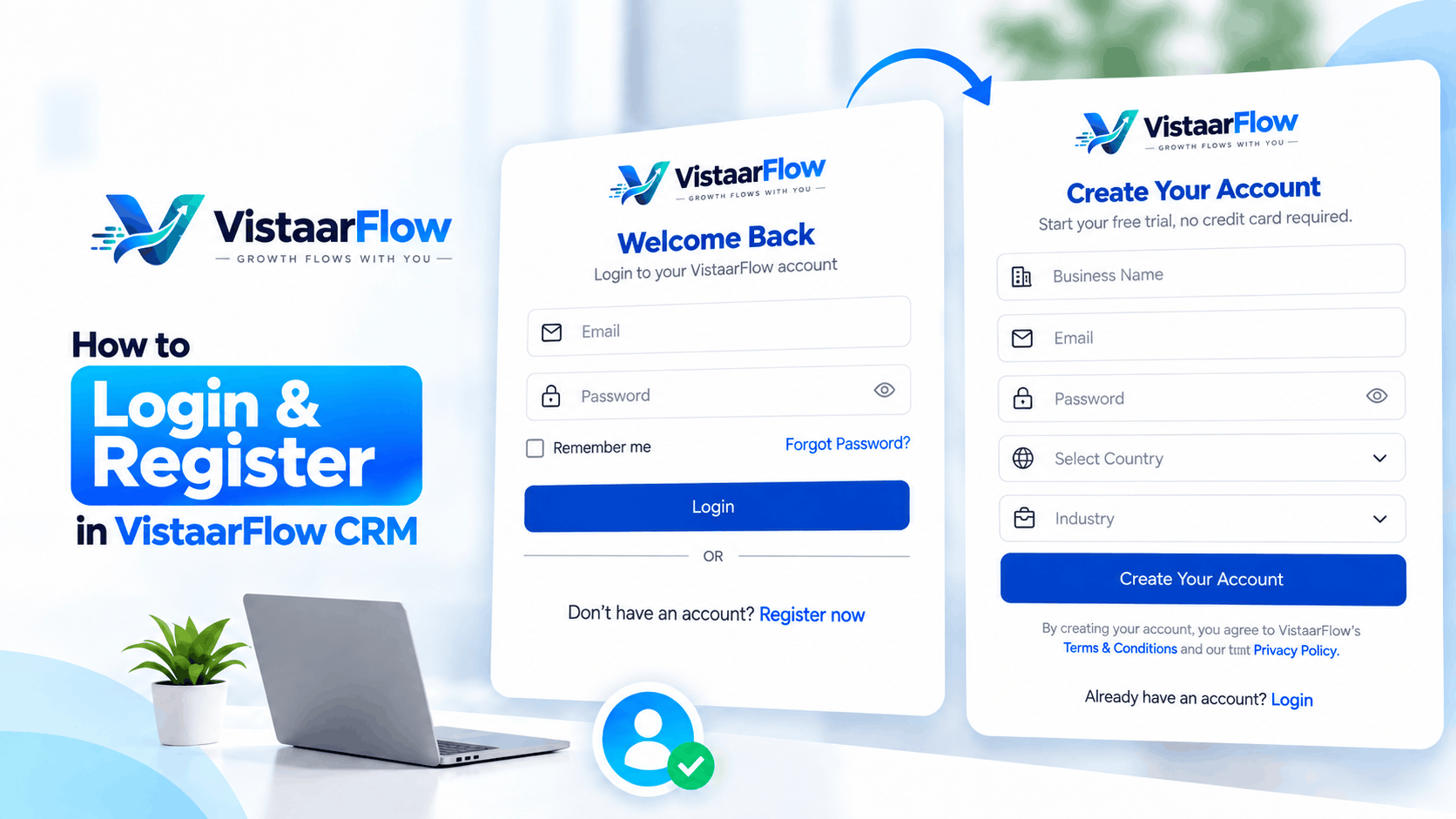
Go to vistaarflow.in/signup, or click the Start free trial button on the VistaarFlow website. You will see the registration page titled CRM Made Simple with VistaarFlow.
Step 2: Fill in your business details
The sign up form asks for a few simple details:
- Business Name: Enter the name of your company or business.
- Email: Use your work email address. You will need access to it to verify your account.
- Password: Create a strong password that you do not use on other websites.
- Country: Select your country from the dropdown list.
- Mobile number: Enter your mobile number. It is used as the primary contact number for your CRM account.
- Industry: Tell us what industry your business is in, for example real estate, education, services or retail.
Step 3: Create your account
Click the Create Your Account button. By creating an account you agree to VistaarFlow’s Terms & Conditions and acknowledge the Privacy Policy, so take a moment to read them first.
Step 4: Verify your email with the 6-digit code
For your security, VistaarFlow emails you a 6-digit code to verify your address before your account is activated. Open your inbox, copy the code and enter it on the verification screen. If you do not see the email within a minute or two, check your spam or promotions folder.
Once your email is verified, your account is active and you are ready to log in.
How to Login to VistaarFlow CRM
Already have an account? Logging in takes less than a minute.
Step 1: Go to the login page
Visit app.vistaarflow.in/login. You can also click Log in from the VistaarFlow website.
Step 2: Enter your email and password
Type the email address and password you used when you registered. If you want to check that you typed your password correctly, click the Show option inside the password field.
Step 3: Use Remember me (optional)
Tick the Remember me checkbox if you are using your own personal device and want to stay signed in. Avoid this option on shared or public computers.
Step 4: Click Login
Press the Login button and you will be taken straight to your VistaarFlow dashboard.
Forgot Your Password? How to Reset It
Everyone forgets a password sometimes. If that happens:
- Open the login page.
- Click Forgot password? below the password field.
- Follow the instructions to reset your password.
- Return to the login page and sign in with your new password.
If you still cannot get in, contact the VistaarFlow support team and they will help you.
Don’t You Have an Account Yet?
If you land on the login page without an account, click Sign up at the bottom of the login form. It takes you directly to the registration page. In the same way, if you land on the sign up page and already have an account, click Login at the bottom of the form.
Common Login and Registration Problems (and Quick Fixes)
- I did not receive the verification email. Check your spam folder, make sure you typed your email address correctly and wait a couple of minutes before trying again.
- My password is not working. Click Show to check for typing mistakes, make sure Caps Lock is off, or use Forgot password? to reset it.
- My email says it is already registered. You probably have an account already. Go to the login page and sign in, or reset your password.
- I entered the wrong mobile number. Contact support so the number on your account can be corrected.
Tips to Keep Your CRM Account Secure
- Use a long, unique password that you do not use anywhere else.
- Do not share your login with other people. Add each team member with their own access instead.
- Log out when you use a shared or public computer.
- Keep your email account secure too, because it is used to verify and recover your VistaarFlow account.
What to Do After You Log In
Once you are inside your dashboard, you can begin setting up your CRM:
- Import your existing contacts and leads.
- Create your first sales pipeline with stages that match your business.
- Connect WhatsApp so every enquiry becomes a contact in your CRM.
- Add your team members and assign leads to them.
- Set up automated follow-ups and reminders so no lead goes cold.
Need help? You can also watch our video tutorial, How to Register & Login to VistaarFlow CRM, on the VistaarFlow website, and the team offers guided onboarding to help you set up.